


On most iPhones, the built-in Camera app doesn't let you type in an exact shutter speed. It chooses one for you. You can still influence it with exposure, Night mode and Live Photos. For full manual control, use a manual camera app such as Snap Pro Camera by MIOPS.
The exception is the newest Pro models. On iPhone 18 Pro and iPhone 18 Pro Max, Apple's new Pro controls add a shutter speed setting to the Camera app. This guide covers every option, plus the shutter speeds to use and how to set manual focus.
What is shutter speed, and why does it matter?
Shutter speed is how long the camera collects light for one photo. It is written in seconds or fractions of a second, such as 1/1000 s or 1 s.
It changes two things:
- Motion. A fast shutter speed freezes movement. A slow one turns movement into blur, like silky water or light streaks.
- Brightness. A slower shutter lets in more light. A faster one lets in less.
Shutter speed works together with ISO (how much the image is brightened) and aperture (how wide the lens opens). Most iPhone lenses have a fixed aperture. So on iPhone, shutter speed and ISO do most of the work.
Can you change shutter speed on iPhone?
Yes, but how depends on your model and the app you use.
In the built-in Camera app (most models)
There is no shutter speed setting. The Camera app sets shutter speed and ISO automatically. It also won't show you the value it picked. You can still steer it in four ways:
- Exposure: making the photo darker often means a faster shutter. Making it brighter often means a slower one.
- Night mode: lets you choose a longer capture time in low light.
- Live Photos: the Long Exposure effect fakes a slow shutter after you shoot.
- Burst mode: doesn't change the shutter, but helps you catch fast action.
On iPhone 18 Pro and iPhone 18 Pro Max
Apple added Pro controls to the Camera app on these two models. According to Apple, you can adjust settings such as aperture, shutter speed and white balance, and use a histogram to check exposure. For the exact steps, see Apple's guide Use advanced camera tools on iPhone.
With a manual camera app (any recent iPhone)
Third-party camera apps can set an exact shutter speed on older models too. You pick the value, and the app shows it on screen. We show how in the Snap Pro Camera section below.
How do you adjust exposure in the iPhone Camera app?
Exposure is the closest thing to a shutter control in the standard Camera app. Here is how to use it:
- Open the Camera app in Photo mode.
- Tap your subject to set focus and exposure.
- Drag the small sun icon next to the focus box. Drag up to brighten, down to darken.
- For a setting that stays put, open the camera controls and tap the Exposure (±) button. Then move the slider.
On iPhone 16 and later, you can also adjust exposure with Camera Control, the button on the side of the phone.
A quick rule: for moving subjects in good light, darken a little. The iPhone then tends to use a faster shutter, so motion blur drops.
What shutter speed should you use?
Use this table as a starting point. The right value depends on light, lens and how fast your subject moves.
| Subject | Shutter speed | Tip |
|---|---|---|
| Kids and pets running | 1/500–1/1000 s | Raise ISO if needed |
| Sports, birds in flight | 1/1000–1/2000 s | Shoot a burst |
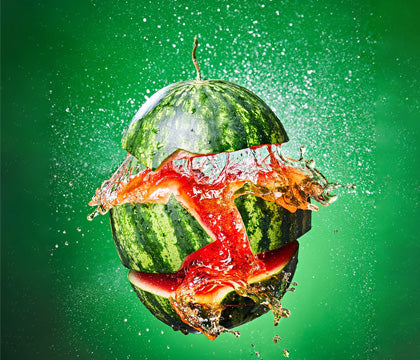
| Splashing water, frozen | 1/1000 s or faster | Use bright light |
| People walking, street | 1/250 s | Good all-round speed |
| Still scene, handheld | 1/60 s or faster | Hold the phone with both hands |
| Night city, on a tripod | 1/4–1 s | Lowest ISO, use a timer |
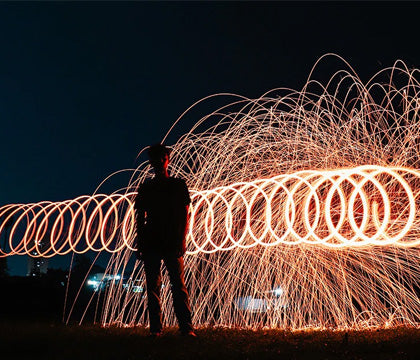
| Silky water, light trails | 1 s or a long exposure mode | Tripod needed |
Notice the pattern. Fast action needs fast speeds. Slow speeds need a steady phone.
How do you freeze motion with a fast shutter speed?

Freezing motion needs a fast shutter, and a fast shutter needs plenty of light. Follow these steps:
- Find good light. Shoot outdoors or near a bright window. In dim rooms, the iPhone slows the shutter and motion blurs.
- Use the main (1x) camera. It usually gathers the most light. Avoid digital zoom.
- Darken the exposure slightly in the Camera app. This often pushes the shutter faster.
- Shoot a burst. Slide the shutter button to the left, or turn on Settings › Camera › Use Volume Up for Burst. Then pick the sharpest frame.
- Turn off Live Photos and Night mode for action. Both can lead to slower captures.
- In a manual app, set 1/1000 s or faster. Then raise ISO until the photo looks bright enough.
Some noise is fine. A sharp, slightly grainy photo beats a clean, blurry one.
How do you get a slow shutter effect on iPhone?

A slow shutter turns moving water into silk and car lights into streaks. On iPhone you have three ways to get this look.
1. Long Exposure from a Live Photo
- Turn on Live Photos in the Camera app (the round icon at the top).
- Hold the phone very still, or use a tripod, and take the photo.
- Open the photo in the Photos app.
- Tap the Live menu in the top-left corner and choose Long Exposure.
The iPhone blends the frames of the Live Photo. Moving parts blur, still parts stay sharp.
2. Night mode
In low light, Night mode turns on by itself. Tap the Night mode icon and move the slider to choose a longer time. On a tripod, the iPhone can offer much longer times, up to 30 seconds on supported models.
3. A long exposure mode in a camera app
Apps with dedicated modes give you more control over the effect. For a full walk-through of all three methods, read our guide to iPhone long exposure photography.
How do you set shutter speed manually with Snap Pro Camera by MIOPS?

If your iPhone has no shutter speed setting, a manual camera app fills the gap. Snap Pro Camera by MIOPS puts shutter speed, ISO, white balance and focus on one bar at the bottom of the screen.
What does Snap Pro Camera by MIOPS offer for shutter control?
- Manual shutter speed from 1 second to as fast as 1/11,300 s, depending on your iPhone.
- Manual ISO to balance brightness at any speed.
- Live histogram and zebra stripes to spot dark or blown-out areas before you shoot.
- Manual focus with focus peaking, which highlights sharp edges on screen.
- Manual white balance for consistent colour across a series.
- Long exposure modes: Motion Blur, Light Trails and Low Light.
- 3, 5 or 10 second timer and an Apple Watch shutter for shake-free shots.
- RAW and ProRAW for the most editing room.
How do you change shutter speed in Snap Pro Camera, step by step?
- Open Snap Pro Camera by MIOPS in Photo mode.
- Find the controls bar at the bottom: SS, ISO, WB and FOCUS. A small "A" badge means that setting is on auto.
- Tap SS (shutter speed). A dial appears above the bar.
- Turn the dial to your speed. Use the table above as a guide.
- Tap ISO and set the lowest value that still gives a bright enough photo.
- Check the histogram. Too dark? Use a slower shutter or a higher ISO. Zebra stripes on important areas? Use a faster shutter.
- To go back to automatic, tap AUTO on the dial.
Which Snap Pro Camera mode should you use for slow shutter shots?
- Motion Blur for waterfalls, rivers and clouds.
- Light Trails for traffic and city lights at night.
- Low Light for cleaner photos in dim scenes.
Put the phone on a tripod. Start the shot with the timer or your Apple Watch, so you don't shake the phone when you press the button.
Most modes can be tried for free. Pro unlocks full manual control, RAW and 4K. Download Snap Pro Camera by MIOPS on the App Store.
How do you set manual focus on iPhone?
Fast and slow shutter speeds both need sharp focus. Here are your options.
In the Camera app: AE/AF Lock
- Frame your shot.
- Touch and hold your subject until AE/AF LOCK appears.
- Focus and exposure now stay fixed, even if you recompose.
- Drag the sun icon to fine-tune brightness.
- Tap anywhere else on the screen to unlock.
This is ideal for action. Lock focus where the subject will be, then wait for it to arrive.
In a manual camera app: true manual focus
In Snap Pro Camera by MIOPS, tap FOCUS and turn the dial. Focus peaking highlights the sharpest edges, so you can see exactly what is in focus. This helps for the moon, stars and night scenes, where autofocus often hunts. See our guide on how to take pictures of the moon with iPhone for a worked example.
Why are my iPhone photos blurry at slow shutter speeds?

There are two kinds of blur. It helps to know which one you have.
- Everything is blurry. That is camera shake. Your hands moved during the exposure.
- Only the moving subject is blurry. That is motion blur. The shutter was too slow for the subject.
How to fix camera shake
- Know your limit. As a rough guide, keep handheld shots at 1/60 s or faster on the main camera. Use about 1/125 s or faster on the telephoto lens.
- Brace yourself. Hold the phone with both hands. Tuck your elbows in. Lean on a wall or rest the phone on a solid surface.
- Use a tripod for anything slower than about 1/15 s.
- Don't press the button hard. Use the timer, the volume button or a remote shutter such as an Apple Watch.
How to fix motion blur
- Use a faster shutter speed. Check the table above.
- Add light, or raise ISO, so the faster shutter still gives a bright photo.
- Pan with the subject as it moves. The background blurs, but the subject stays sharper.
Still not sharp? Clean the lens first. A smudged lens looks like blur at any speed. For more fixes, read how to take professional photos with your iPhone.
FAQs
Can you change shutter speed on iPhone without an app?
Only on iPhone 18 Pro and iPhone 18 Pro Max, which have Pro controls in the Camera app. On other models, the Camera app sets shutter speed automatically. You can influence it with exposure, Night mode and the Live Photo Long Exposure effect.
Where is shutter speed in iPhone camera settings?
It isn't in Settings › Camera. On models with Pro controls, it is in the Camera app itself. On other models, you need a manual camera app. For the settings that are in Settings › Camera, see our guide to the best iPhone camera settings.
What is the fastest shutter speed on iPhone?
Apple doesn't publish a fixed range for the Camera app. In Snap Pro Camera by MIOPS, you can set up to 1/11,300 s, depending on your iPhone. Speeds that fast are only useful in very bright light.
Does Night mode change the shutter speed?
Yes, in effect. Night mode captures light over a longer time and combines several frames. The time you choose on the slider is the total capture time, not a single exposure.
What shutter speed is best for waterfalls on iPhone?
Start at about 1/2 s to 1 s on a tripod for a soft, silky look. Longer times make the water smoother. In bright daylight, a long exposure mode or a Live Photo Long Exposure is often easier, because slow shutter photos can come out too bright.
Ready to take control of every shot? Read our guide to iPhone long exposure photography, or download Snap Pro Camera by MIOPS on the App Store.